

Tasks That Include the Products You Are Comparing
“Select dining table” is not just a task — it includes the 3 tables you are considering, with their retailer prices, dimensions and images side by side. When you complete the task, the selected product flows directly into the stage product list.
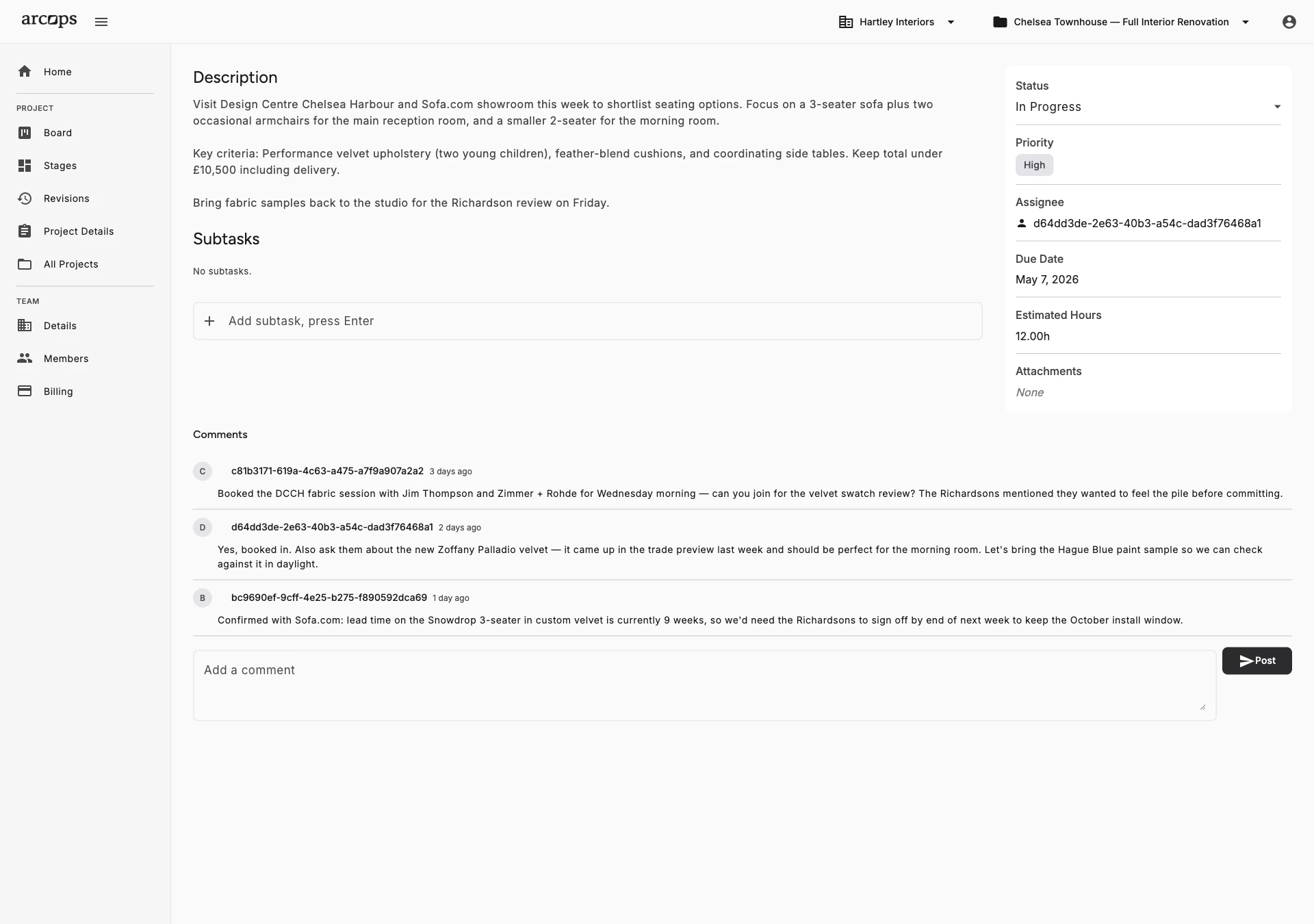
Attach any number of sourced products to a task. Each product shows its image, price, dimensions and retailer — giving you a complete comparison view within the task.
See price, dimensions, availability and retailer for every attached product in one view. Compare the options against each other before making your recommendation.
When you complete a product-linked task, mark which product was selected. It automatically moves to the stage product list — ready for client review.
Stop Juggling Between Your Task Board and Your Spreadsheet
In generic PM tools, a task is just text. Your actual product comparisons live in a separate spreadsheet, shared folder, or scattered WhatsApp messages. ArcOps brings them together — the task IS the comparison.
When sourcing a sofa for a client, create a task “Select living room sofa”. Attach the 3 sofas you are considering from your product catalog. Each shows its retailer, price, dimensions and photo. Complete the task, mark the winner, and it flows into the stage.
Explore Stage-Based Workflow →0+
Products attachable per task from your sourcing catalog
0
Click to attach a sourced product to any task
0%
Of each product’s details — price, dimensions, retailer — visible in every task
Products Flow From Tasks to Stages to Client Presentations
Products sourced from 50+ retailers attach to tasks with one click — no manual copy-pasting of prices or images
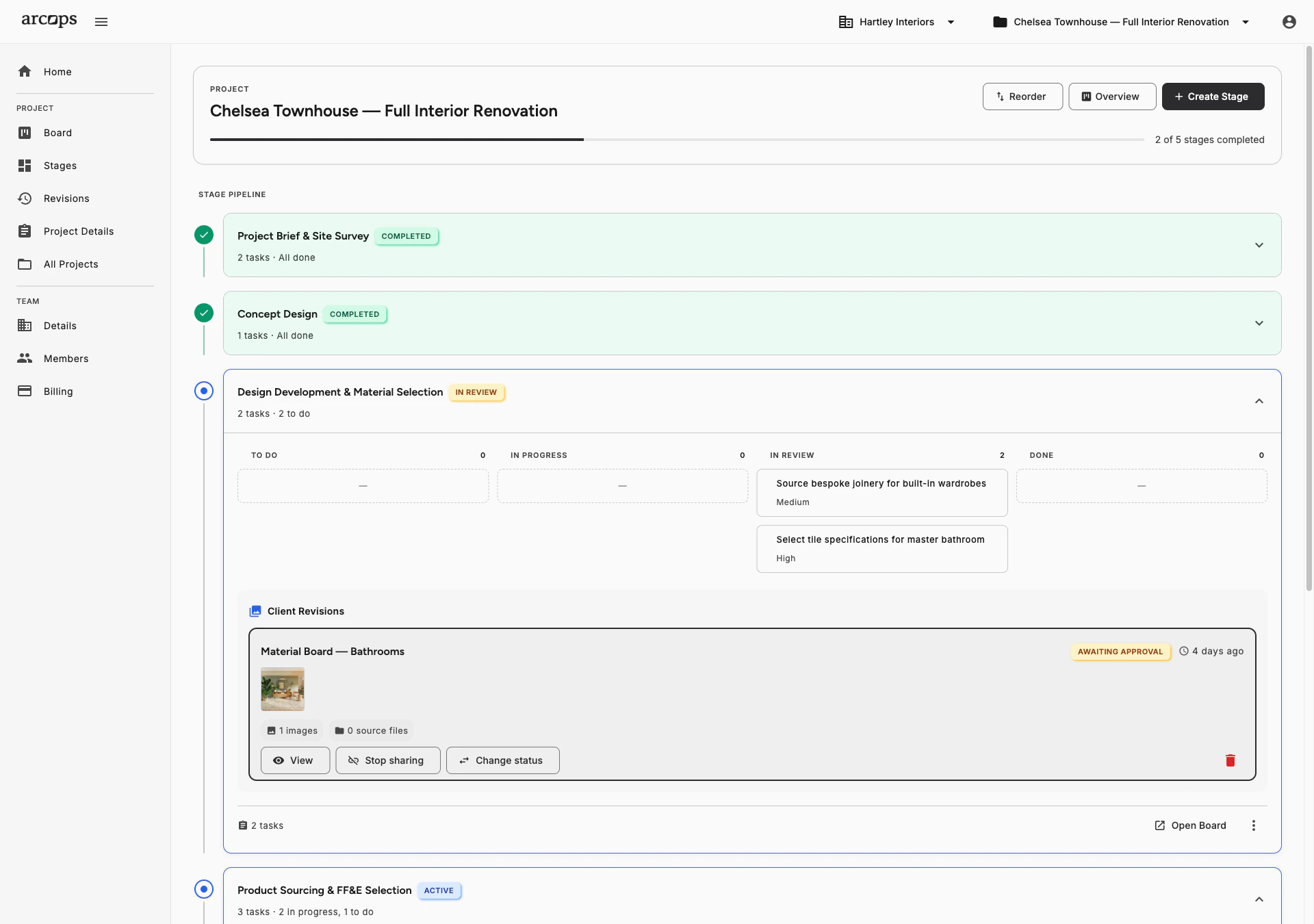
Completed tasks push selected products into the stage product list with all pricing data intact
Stage product lists can be shared with clients for review and approval via unique links
Frequently Asked Questions
Open any task and click “Add Product”. Search your sourcing catalog or product libraries, and select the products you want to compare. Each product appears in the task with its image, price and dimensions.
Yes. Every attached product shows its retailer, price, dimensions and availability in the same view, so you can weigh the options without opening nine retailer tabs.
When completing the task, select which product won the comparison. That product automatically moves to the stage product list, ready to include in the next client revision.
Yes. A product from your catalog can be attached to any number of tasks across different stages and projects. The product data stays synchronized everywhere.
No. Product linking is optional. Simple tasks without product comparisons work just like regular Kanban tasks. Use product linking when you need to compare options for a specific selection decision.